

In this tutorial, we will learn how to set up Pop Tree Checker, a tool that allows you to instantly retrieve emails from external accounts associated with Gmail.
To begin, access the Gmail Pop Checker through the address danielslotter.com/project/gmail-pop-tree.
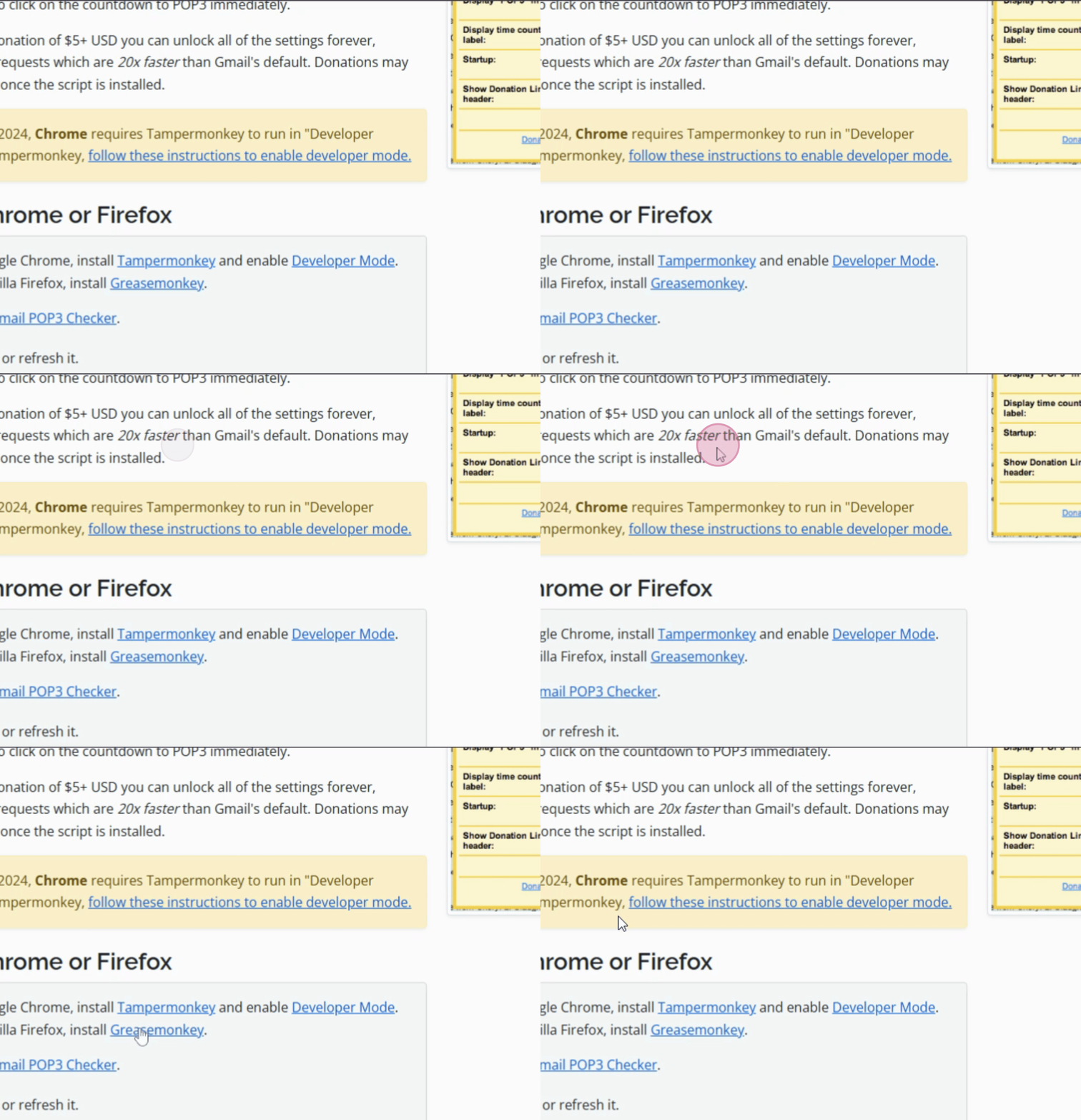
Then, scroll down to the section that says 'Install in Chrome or Firefox' and choose the appropriate extension. For Chrome, select Tampermonkey and for Firefox, choose Greasemonkey.
We click on Tampermonkey, which will take us to the Google Chrome extension page. Here, click on 'Add to Chrome' or 'Add to Chrome' and confirm the addition of the extension in the pop-up that will appear. A confirmation that Tampermonkey has been successfully installed should be displayed.
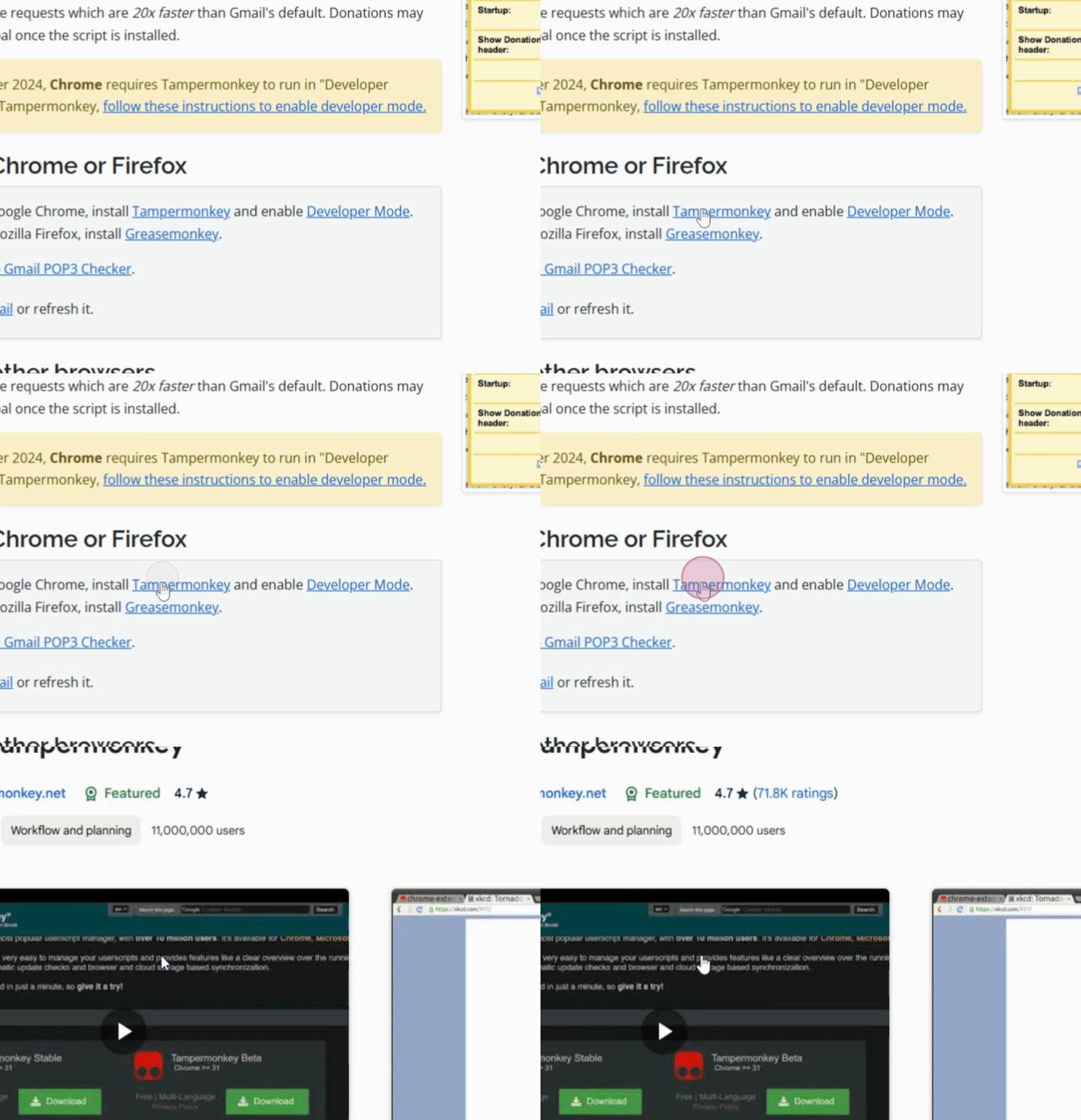
After installation, return to Gmail Pop Checker and close unnecessary tabs.
Click on the second step, where it says 'Install de Gmail Pop Checker'. The Tampermonkey screen will appear. If you're using Greasemonkey, the screen will be slightly different. Click on 'Install'.
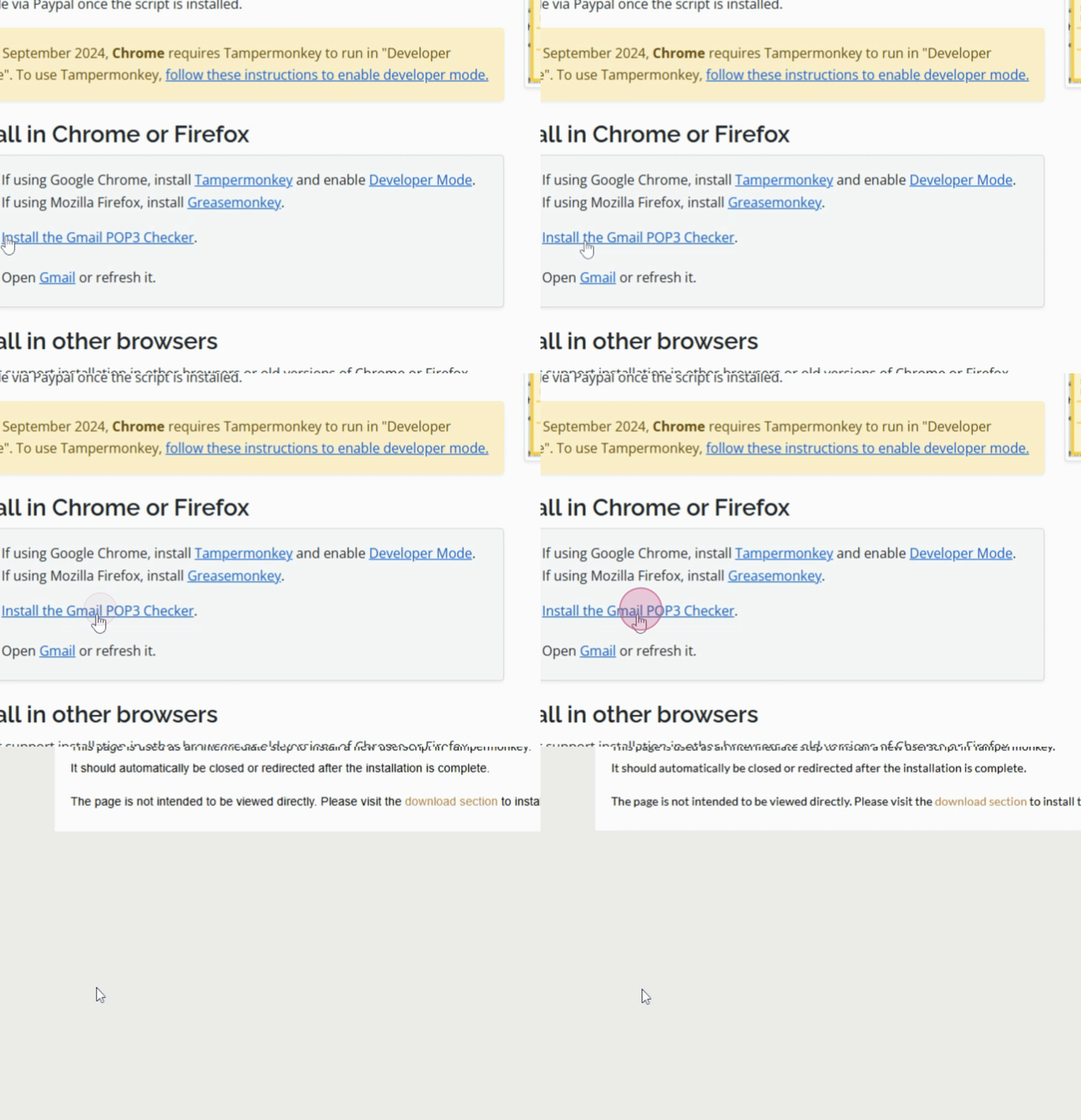
The process should now be complete. Now, return to your Gmail.
Refresh the page by pressing 'Refresh'.
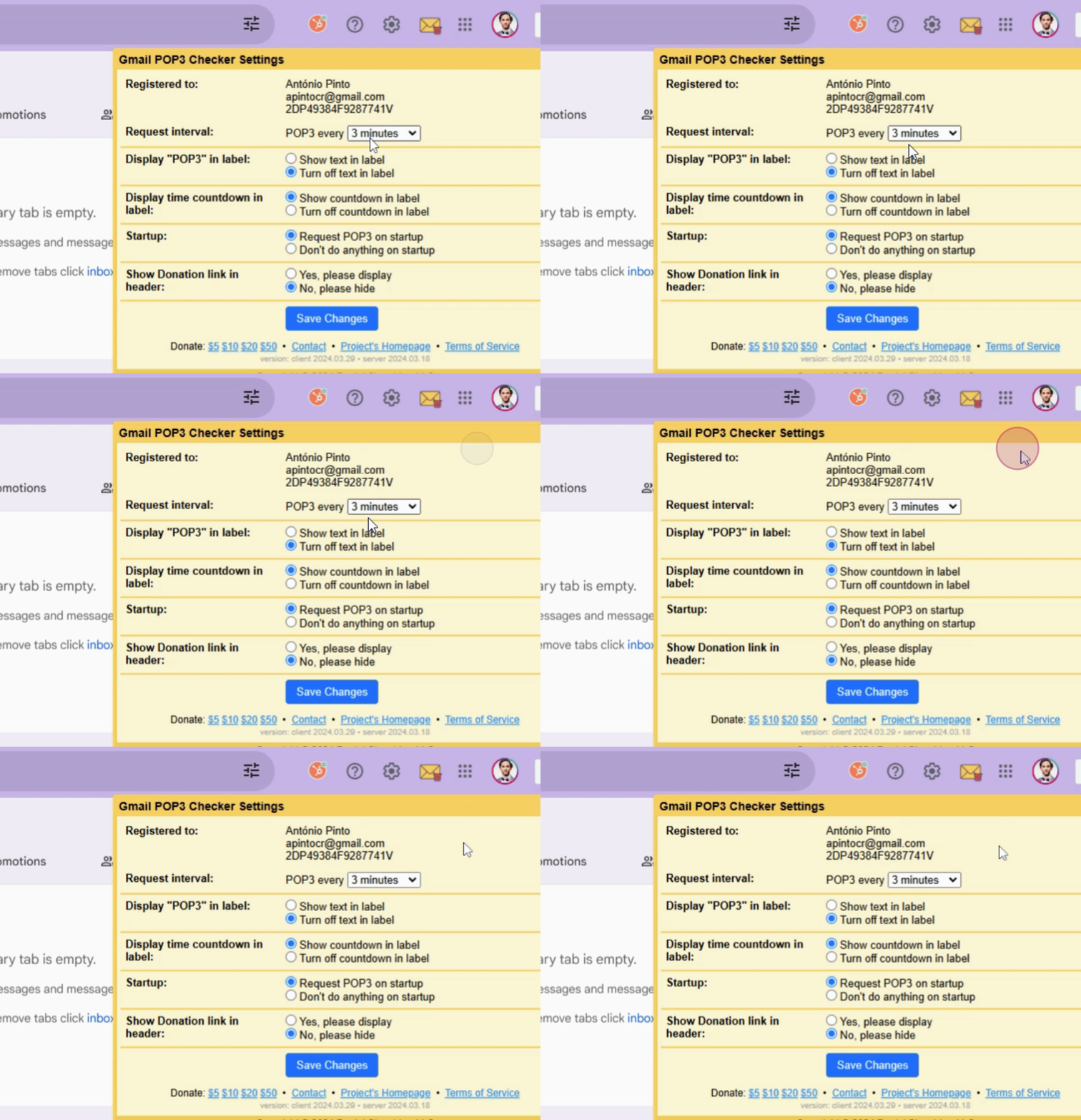
Now, you should see a timer in the upper corner. For those setting up for the first time, a configuration message may appear. If you want to modify options, you can make a donation by clicking on 'Donate', or you can simply leave the settings as they are.
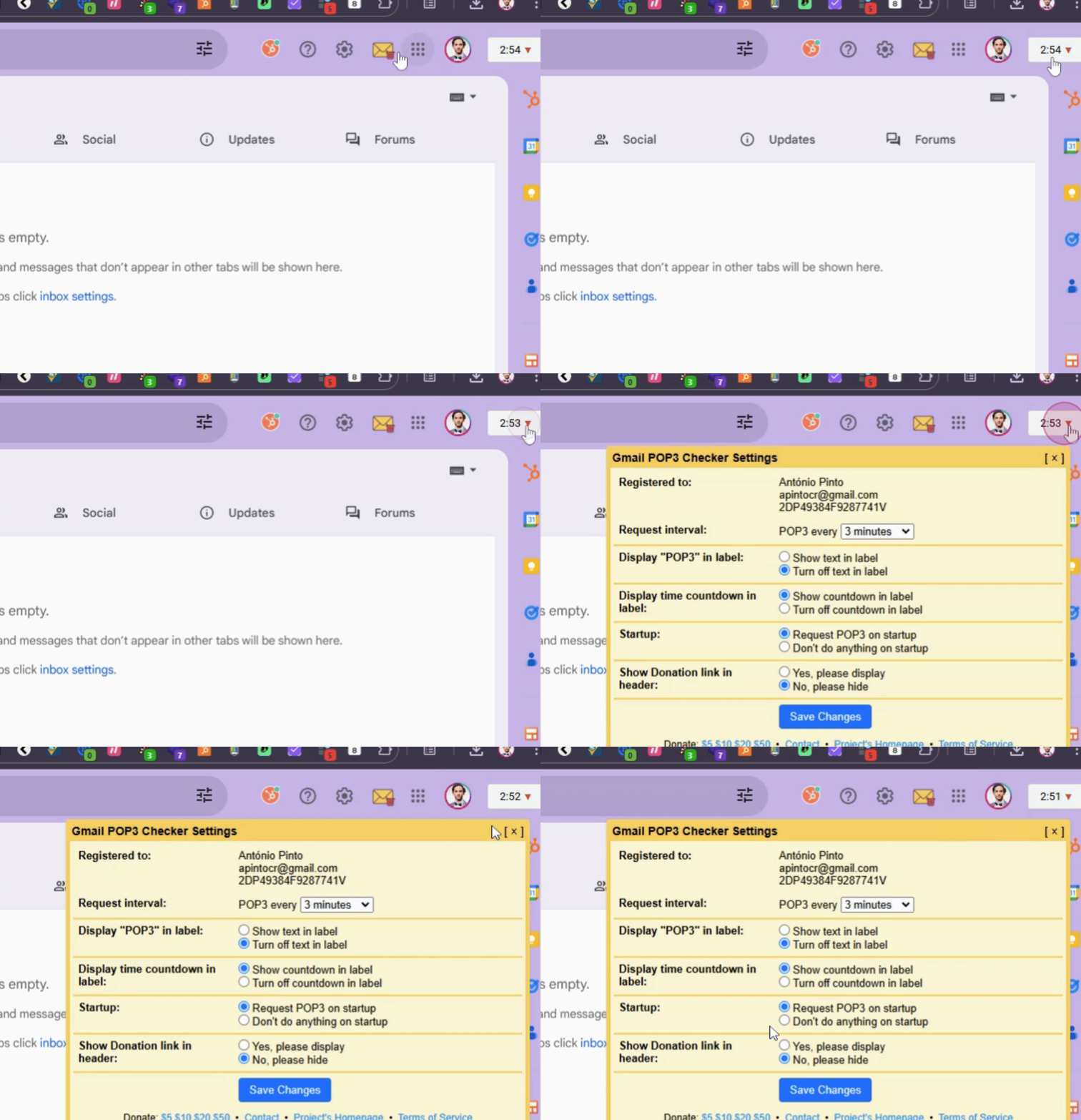
Every 15 minutes, the system will automatically search for new emails. If you want to retrieve emails immediately, simply hover over the timer and click. This will cause the system to check for new emails in your external account.
By following these steps, you will correctly configure Pop Tree Checker to quickly and efficiently retrieve emails from an external account.
